
Internet services for the discriminating user

|
|
|
| Email Setup |
|
|---|---|
| Email Client: |
To setup an email
client on your
PC, you will need to enter
Newer email clients like Thunderbird figure out most of the settings automatically based on your new email address. However, you will need to override the account name because it is not the same as the name part of your email address. For incoming and outgoing server settings, see below. |
| Webmail Access (Recommended) |
For webmail access,
you will
need your new account name and password. Click here and
enter those in the
popup window. After your first login, you may want to click on
options->personal information and add your full name, signature,
etc. For secure (SSL encrypted) webmail access, use https://mail.opost.com/sqmail/ |
| Email Incoming Server: |
mail.opost.com You can use IMAP or POP3 protocols. IMAP is recommended in order to take advantage of spam filtering and other optional features. The advantage of POP3 is that new email is always downloaded to your computer, and you will be able to access it when offline. You can specify a secure connection (SSL/TLS) if available in your email client (Recommended). The first time you connect, you may need to confirm a security exception because Thunderbird or other email software does not recognize the certificate authority. Some devices may not support making a permanent exception. For such devices, a connection security of type of 'none' must be used. The setup should look something like this Thunderbird example: 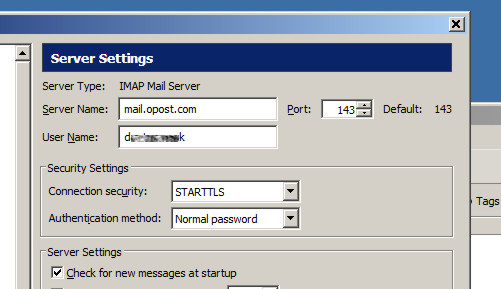 |
| Email Outgoing Server: |
mail.opost.com In the outgoing server window, check the "authentication required" box and use the same as for the incoming server. Check the port value and change it to 587 if necessary. We recommend selecting "secure connection" (TLS) also. You may need to confirm a security exception for the first outgoing message sent. The setup should look something like this Thunderbird example: 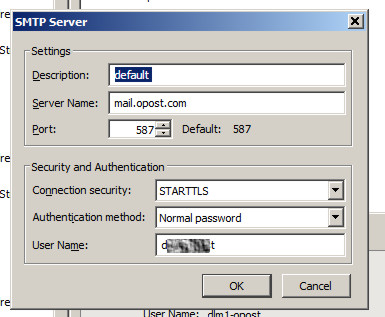 Other Ports: Some older software may support encrypted connections but not STARTTLS. For those, port 465 (SSL/TLS) should work. In rare cases, some netwowrk service providers have been observed to block the standard outgoing port 587. If port 587 consistently does not work, especially if it always hangs or times out, it is probably blocked. In that case, port 9024 may save the day. |
|
Spam
Filtering |
|
| Setup: |
Spam filtering
using SpamAssassin
is available on
ParkBits email accounts. SpamAssassin is an open source
system
which is aggressively maintained to detect the latest spamming
techniques yet have very little chance of a false positive.
Spam
filtering can be enabled for any email account by request.
Click
here to request spam filtering to
be turned on or off for your email account. With spam
filtering
enabled, you can choose either of two ways to handle the messages found
to be spam:
|
| Web Site
Setup |
|
| FTP Server: |
ftp.opost.com
This is the access method used by website editors such as Dreamweaver. Use
the name and password provided with your account setup info. Secure ftp
(sftp, scp) may also be used. See here for more information
on FTP use. |
| Directory setup: |
There are four
subdirectories
initially in your web area:
|
| Application software: | For installation of easy-to-use application software such as WordPress, phpBB, and others, contact us. |